
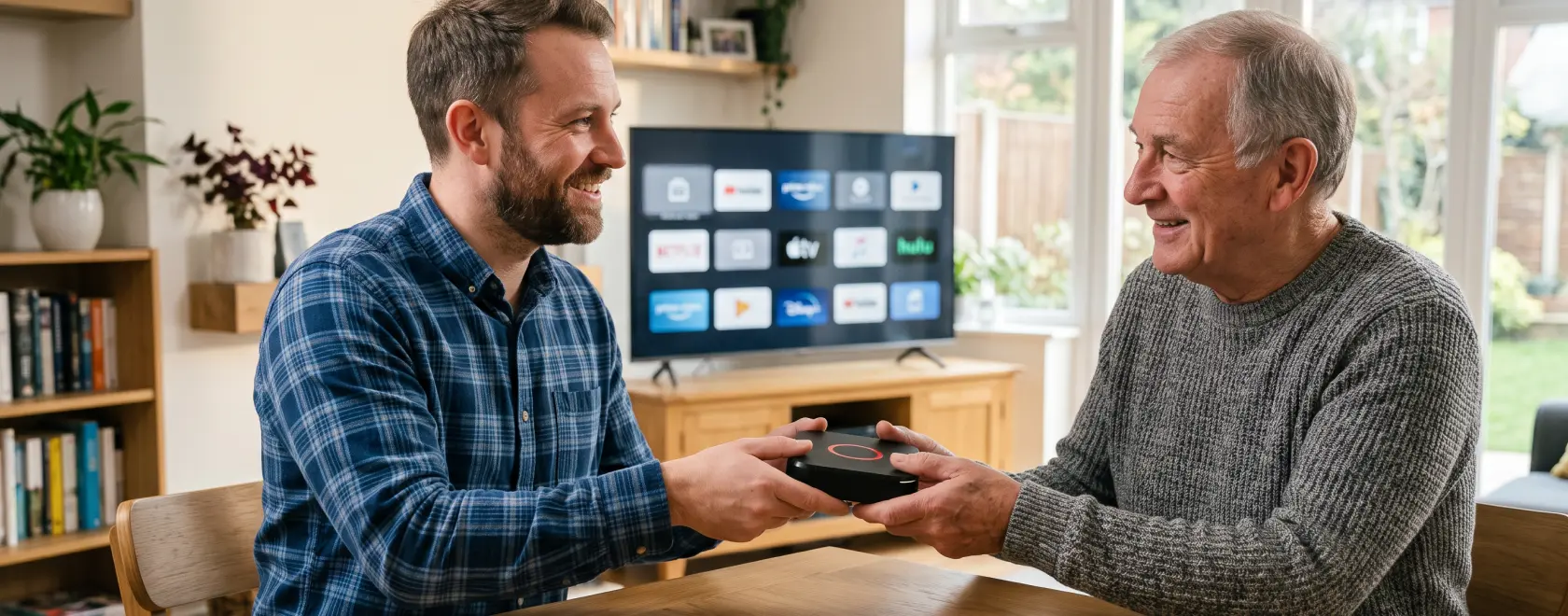
An IPTV set top box can store much more personal information than you might expect. The device may retain streaming service accounts, viewing history, saved Wi-Fi passwords, IPTV provider details, installed apps, and user settings. That is why simply disconnecting the box from the TV, putting it in a package, and handing it over to a new owner is not the best approach.
Before selling or transferring the device, it is important to remove your personal information, unlink the necessary accounts, and return the set-top box to a state in which the new user can configure it independently. Proper personal data removal and attention to device privacy are essential if you want to sell used IPTV box safely. The exact procedure will depend on the device model and operating system.
First, Check Who Owns the Set-Top Box
Before deleting any data, make sure that the device actually belongs to you. If the set-top box was supplied by an IPTV or internet provider as part of your service plan, it may remain the operator’s property even after several years of use.
In this case, you should not sell or transfer it to another person without checking the terms of your agreement. Contact your provider and find out whether the equipment must be returned, whether it can be transferred to another user, and whether the box is linked to your subscriber account.
If you purchased the device separately, you can proceed with the preparation.
Sign Out of Your Personal Accounts
The first important step is to check the apps and services you are currently signed in to. You may still have active YouTube, Netflix, and other streaming platform accounts on the set-top box, as well as a Google account on Android TV or Google TV devices.
Whenever possible, sign out of these accounts manually first. This streaming account logout is especially useful if the service allows you to manage a list of authorized devices: after signing out, you can also open your account settings on a smartphone or computer and make sure that the set-top box you are selling no longer has access. In other words, if you need to remove account from IPTV box, it is worth checking both the device itself and the relevant online account.
Check the IPTV app separately. If it contains a saved username and password, playlist, server URL, portal details, or other information used to access the service, this data should also be deleted. Review the IPTV account settings carefully. If the subscription is linked to a particular device, MAC address, or another identifier, it is better to ask the provider in advance how to unlink the old set-top box correctly.
Save What You Will Need on Your New Device
Do not rush to reset the device immediately. If you are planning to buy another set-top box, first consider which settings you will need to transfer.
These may include IPTV provider details, a playlist address, EPG information, a list of apps, or other settings. If the application supports backup or settings export, save this information in a secure location.
However, you should not give this backup to the buyer. It is intended for you and may contain personal information or subscription access details.
Perform a Factory Reset
Once you have signed out of your accounts and saved the information you need, the set-top box should be restored to its factory state. A factory reset is one of the most important steps when you prepare set top box for resale.
The reset removes user-installed apps, accounts, and most personal settings, returning the system to its original configuration. The name and location of the relevant option depend on the platform and software version. It can usually be found in the system settings under sections related to the device, system, storage, or reset options. This is generally how to factory reset IPTV box safely using the built-in tools rather than third-party software.
On Android TV and Google TV devices, the procedure is performed through the system menu. If you need to factory reset Android TV box, use the reset option provided by the operating system. On Linux devices, the procedure depends on the specific model and firmware. If you need to reset MAG set top box, follow the instructions for the exact model and software version, since menus and available recovery methods may differ. The correct MAG box reset procedure should always correspond to the particular device.
Do not disconnect the power during the reset. Wait until the procedure is complete and the device restarts.
Check the Set-Top Box After the Reset
Starting a Factory Reset does not automatically mean that the preparation is complete. After the device restarts, make sure that it opens the initial setup screen, just as it did when it was first switched on.
Your accounts, IPTV playlists, history, apps with active sessions, and saved user profiles should no longer be present on the device. This final check helps ensure that you really remove personal data from TV box rather than simply hiding or signing out of individual services.
If the set-top box immediately opens your previous interface or an app remains signed in, the reset may not have been completed correctly. In this case, check the manufacturer’s instructions and repeat the procedure using the correct method. If your goal is to clear data from streaming box, verify the result rather than assuming the reset was successful.
There is no need to complete the initial setup again on behalf of the buyer or enter your own Google account, Wi-Fi credentials, or IPTV details. The new owner should do this independently.
Prepare the Complete Set for the New Owner
After clearing the software, it is worth checking the hardware as well. Wipe the set-top box and remote control with a dry, soft cloth, inspect the ports, and make sure that the device powers on and works properly.
Whenever possible, include everything that originally came with the box: the power adapter, remote control, necessary cables, manual, and original packaging. It is particularly important not to replace the original power supply with a random adapter that has unsuitable specifications.
The original box and printed documentation make the handover easier, but their absence usually does not prevent you from selling a used TV box. If the original packaging has been lost, use a sturdy box of an appropriate size and protect the device from impacts. If the printed manual is missing, give the new owner the exact device name and model so they can find the manufacturer’s official instructions online.
When You Should Ask for Help
Most of the preparation can be done by an ordinary user without professional assistance: sign out of apps, save the necessary settings, run the standard reset procedure, check the device, and prepare the complete set.
You may need help from a specialist or provider if the set-top box is linked to an operator account and you do not know how to unlink it; the standard reset does not work; the device requests the previous owner’s details after the reset; the box does not boot; it uses special operator firmware; or you are unsure whether its settings can safely be removed. In these situations, proper set top box security is more important than trying unfamiliar procedures yourself.
There is no need to reflash the device yourself just to sell it unless this is genuinely necessary. A firmware installation error can make a working set-top box unusable. To reset streaming device before selling, the standard account logout and factory reset tools are usually sufficient.
Checklist Before Selling or Transferring an IPTV Set-Top Box
Before handing the device over to its new owner, go through this checklist one more time:
- Make sure the set-top box belongs to you and can legally be transferred to another person
- Sign out of Google and other personal accounts
- Sign out of streaming services
- Delete IPTV account details, playlists, and other access information
- Unlink the device from the IPTV provider if necessary
- Save any settings you will need on your new set-top box
- Reset IPTV box before selling using the standard factory reset function
- After restarting, make sure that your personal information has actually been removed
- Check that the set-top box, remote control, and power adapter work properly
- Prepare the cables and other included accessories
- Include the original box and documentation if you still have them
- If the original box is missing, pack the device securely for handover or transportation
- Give the new owner the exact model name so they can find the official instructions
Preparing an IPTV set-top box for sale or transfer does not take much time: sign out of your personal accounts, save the information you need, perform a factory reset, and check the device afterward. If the box is linked to an operator or you encounter problems with the reset, it is better to contact the provider or a specialist. Before handing it over, also check the remote control, power adapter, and cables, and pack the device carefully – even if the original box and documentation are no longer available.
