
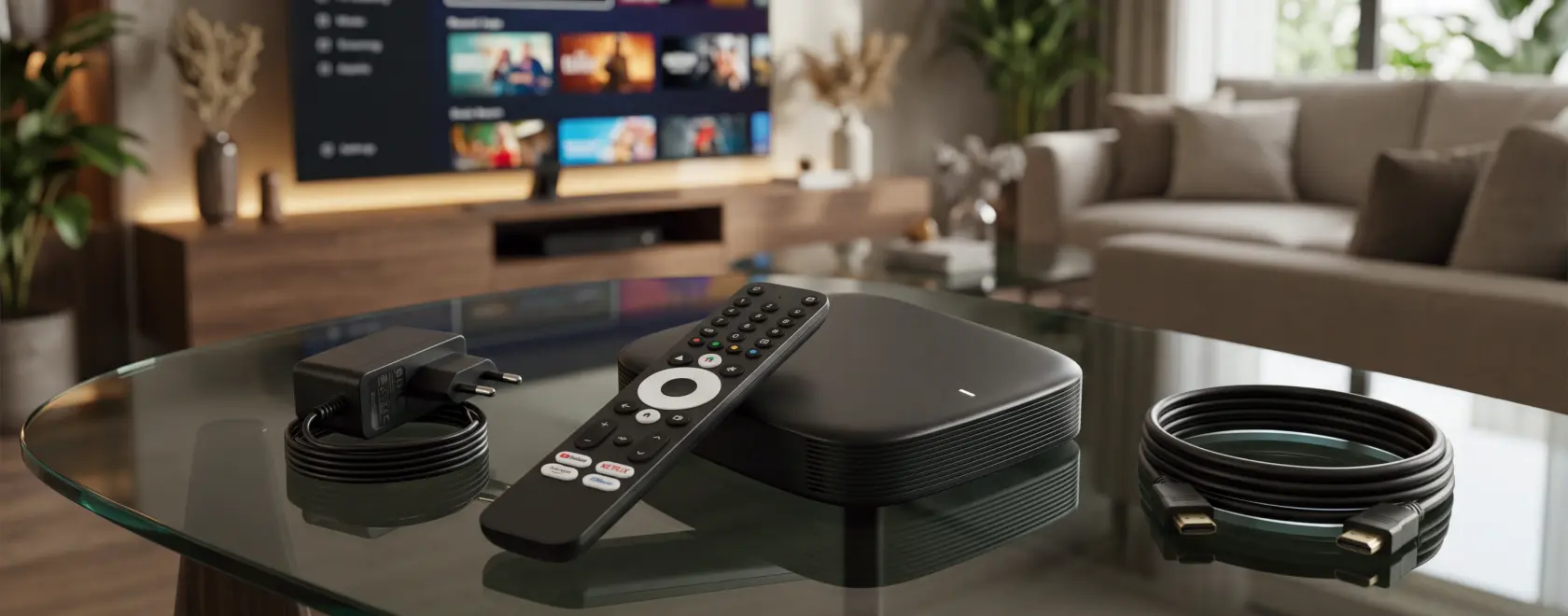
A good IPTV setup does not need a pile of gadgets. For most homes, it comes down to four things: a TV with an HDMI input, a set-top box, a stable internet connection and a subscription from an IPTV/OTT service provider. Get these right, and your first evening of IPTV will be about watching, not troubleshooting.
This guide walks you through what equipment you need for IPTV, how to choose a set-top box, whether a Smart TV can replace one, and how fast your internet should be.
What Do You Need for IPTV
IPTV (Internet Protocol Television) delivers TV channels and video over your internet connection instead of a satellite dish or antenna. That changes the shopping list. Instead of a tuner, you need a device that receives the stream, decodes it and sends the picture to your screen.
Here is the basic IPTV equipment:
- A TV with HDMI. Any HDMI-enabled TV works with a MAG set-top box. Older TVs with composite RCA inputs only can be connected with a special adapter.
- A streaming device. An IPTV set-top box, an Android TV box or a Smart TV app.
- An internet connection and a router. Connect the box with an Ethernet cable or over Wi-Fi.
- A content subscription. Your internet provider or a separate IPTV/OTT operator supplies the channels. Infomir does not distribute, broadcast or otherwise provide TV or video content, so the set-top box and the service are two separate purchases. If you are still choosing a service, see our overview of how IPTV providers differ in Europe and the US.
IPTV Starter Kit for Beginners
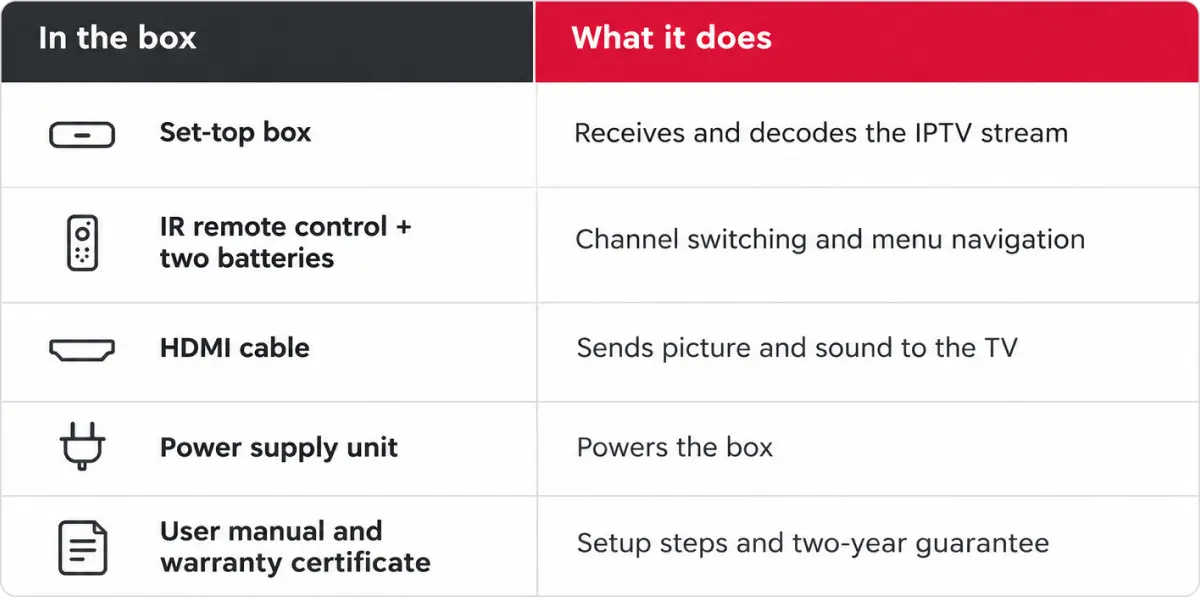
If you buy a MAG Linux set-top box, most of the starter kit is already in the package. The MAG540, MAG540w3, MAG544 and MAG544w3 come with the following items in the box:
What you may still need to add:
- An Ethernet cable, if your router is close to the TV and you want the most stable connection.
- A spare or upgraded remote, a keyboard or an air mouse, if you search for content a lot. Our guide to accessories that make IPTV more comfortable explains what is worth buying and what is not.
- A surge-protected power strip, to protect your TV and box from voltage spikes.
Choosing an IPTV Set-Top Box
A set-top box is a small dedicated computer for TV. If you want to understand what happens inside, read how an IPTV set-top box works. For choosing, three questions matter most.
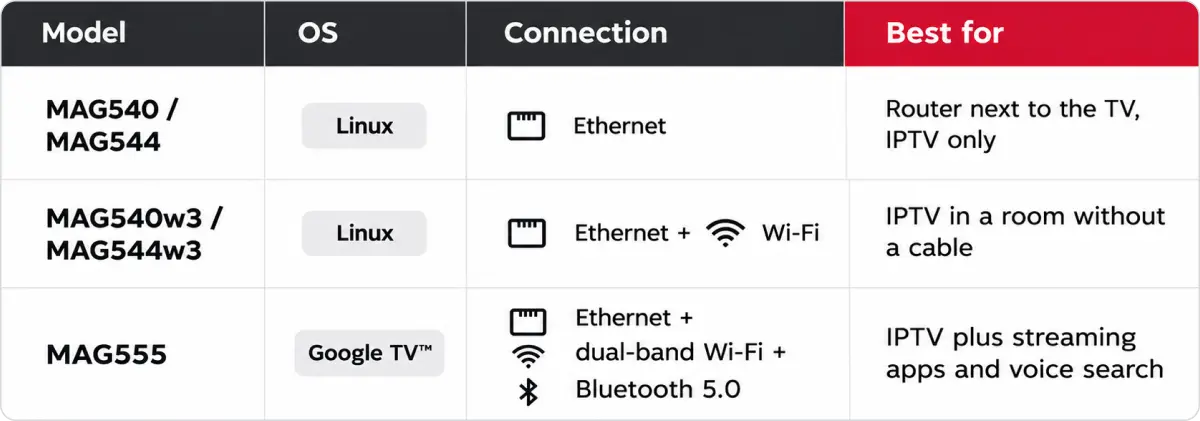
1. Linux or Google TV? MAG540 and MAG544 run Linux: a simple, focused interface for IPTV playback, with support for M3U, M3U8, PLS and CUE playlists. MAG555 runs Google TV™, which brings streaming apps together in one interface and supports voice control with Google Assistant. Choose Linux if you mainly watch your operator’s channels; choose Google TV if you also want apps on the same screen.
2. Ethernet only or Wi-Fi too? MAG540 and MAG544 connect via Ethernet. The “w3” versions, MAG540w3 and MAG544w3, add a built-in Wi-Fi module. MAG555 has dual-band Wi-Fi (2.4 and 5 GHz), Bluetooth 5.0 and Ethernet.
3. Is it ready for 4K? All the models above support 4K and HEVC. MAG555 plays 4K HDR at 60 frames per second.
Set-Top Box vs Smart TV for IPTV
Many Smart TVs can run an IPTV app, so why buy a separate box? It depends on how you watch.
A Smart TV app is a good start if you want to try IPTV without extra hardware. But what the app can do depends on your TV model and on the app store of its manufacturer. A dedicated IPTV set-top box is built for one job. MAG Linux boxes are designed to run for months without a restart, and a box can move with you to a new TV.
Choose a set-top box if you watch live channels every day, if your operator recommends a specific device, or if your TV is older and its apps are slow. Stay with the Smart TV app if IPTV is an occasional extra.
Internet Speed Requirements for IPTV
Speed matters, but stability matters as much. Most IPTV services that offer 4K streaming recommend at least 25 Mbps for smooth playback of one stream, as we explain in speed test essentials for 4K IPTV. If other people in your home stream, download or make video calls at the same time, plan for more. For HD channels the requirement is lower; check the exact figure with your IPTV provider нужно подтвердить: рекомендуемая скорость для HD — у оператора.
Three tips for a stable picture:
- Use Ethernet where you can: it gives lower latency and fewer interruptions than Wi-Fi.
- On Wi-Fi, use the 5 GHz band if your box and router support it, and keep the box within reasonable range of the router.
- Run a speed test in the evening, when networks are busiest, not only in the morning.
Your IPTV Setup in Five Steps
- Connect the box to the TV with the HDMI cable.
- Connect the box to the router with an Ethernet cable, or choose Wi-Fi during setup on a w3 model or MAG555.
- Plug in the power supply and select the HDMI input on the TV.
- Enter the portal address or playlist from your IPTV provider.
- Check the picture on a few channels and, if needed, adjust the resolution in the settings.
FAQ
1. What equipment do you need for IPTV?
A TV with HDMI, an IPTV set-top box or another streaming device, an internet connection with a router, and a subscription from an IPTV/OTT provider.
2. Is an HDMI cable included with MAG set-top boxes?
Yes. The package of MAG Linux set-top boxes includes an HDMI cable, a power supply unit, an IR remote with two batteries and a user manual.
3. Can I use IPTV over Wi-Fi?
Yes, with a Wi-Fi model such as MAG540w3, MAG544w3 or MAG555. For 4K, a wired Ethernet connection is the more stable option.
4. Does Infomir provide TV channels?
No. Infomir makes the set-top boxes; channels come from your internet provider or an IPTV/OTT operator.
Setting up IPTV for the first time is straightforward when you have the right equipment and a compatible service. Start with a set-top box that suits your viewing habits, connect it to your TV and a stable internet connection, and follow your provider’s instructions to access the content. Whether you choose a MAG Linux device for IPTV channels or a Google TV model for additional streaming apps, a well-planned starter kit will help you enjoy reliable, convenient viewing without unnecessary equipment or complicated setup.
