
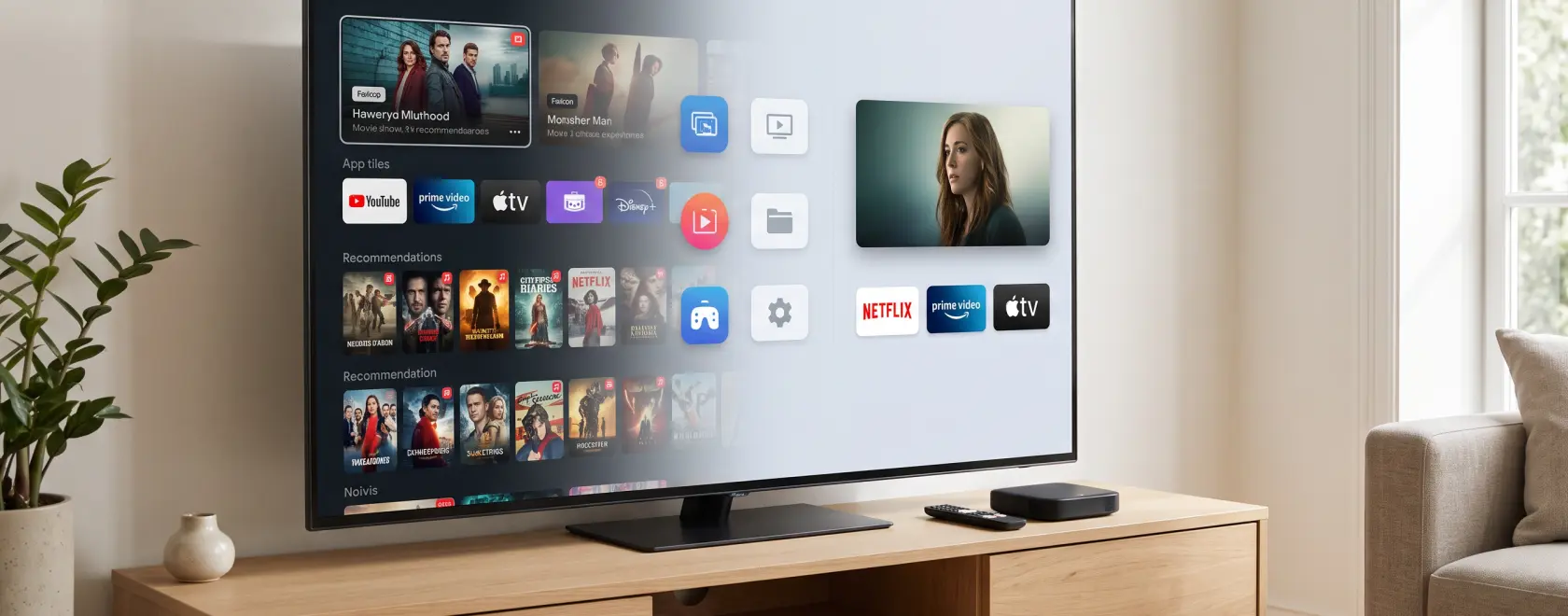
You turn on the TV to watch a programme, yet the screen greets you with trailers, unfamiliar apps and rows of suggested titles. Before playback begins, you are already navigating distractions. Digital minimalism on TV means making that journey shorter: keeping the services you use, reducing interruptions and deciding how much discovery belongs on your screen.
For an IPTV set-top box or streaming media player, a few targeted changes can make everyday viewing easier. Start by checking whether your device runs Google TV, Android TV or an operator-managed platform. Menu names and available controls vary by model, software version and region.
Remove Apps You No Longer Use
Review your installed apps against your viewing habits. An expired trial, an unused game or a second player installed for one test is a reasonable candidate for removal. Keep occasional essentials if reinstalling and signing in would create unnecessary work.
On Google TV, find the app in the Your apps row, hold the remote’s Select button, then choose View details and Uninstall. Use the Move option to bring your main IPTV player and favourite streaming services to the beginning of the row. This puts the shortest route to viewing within easy reach.
Removing an icon from a favourites row is not the same as uninstalling its app. Some preinstalled applications cannot be removed through normal menus; leave unfamiliar system components alone. Before deleting an IPTV player, make sure you can restore its login details and any locally saved playlists.
Uninstalling frees storage, but it does not guarantee faster streaming or fix weak Wi-Fi. It also does not cancel a paid subscription. If you are leaving a service, cancel through the provider or billing platform separately.
Reduce Google TV Recommendations
Google TV offers Apps only mode for viewers who prefer to open a service directly. In Settings, open Accounts & Sign In, select your profile and enable Apps only mode. On some versions, the account section is called Accounts & Profiles.
This hides personalised recommendations on the home screen, but sponsored content and teasers can remain. Recommendations inside individual apps also continue.
There is a functional trade-off: Google says Search and Google Assistant are unavailable in this mode, along with actions such as adding titles to the Watchlist. If voice search is central to how you use your media player, weigh those shortcuts against the quieter layout.
Apps only mode does not change privacy settings. If Web & App Activity remains enabled, Google can continue refining recommendations while they are hidden. Review account activity controls separately if you also want to change how personalisation uses your activity.
Simplify the Android TV Home Screen
On supported Android TV devices, go to Settings, Device preferences, Home screen and Customize channels. Disable content rows you never open and retain useful ones. Here, “channels” means rows supplied by applications, rather than the broadcast channels in your IPTV subscription.
The same Home screen settings may include switches for video and audio previews. Turning these off makes browsing calmer without removing access to content. Google notes that these settings are not available on every Android TV device.
Some trending or sponsored suggestions cannot be switched off through the standard controls. Removing an app’s content row will therefore not necessarily remove every promotional tile. Aim for a practical reduction in clutter within the options your device provides.
Turn Off Unnecessary TV Notifications
First identify which device or app generates the interruption. A message from the television itself requires attention in the TV’s settings; changing settings on an HDMI-connected streaming box will not control it.
For app notifications, open the device’s Settings and look under Apps. Select the relevant application and check for a Notifications control. Where available, disable unwanted alerts. Notification controls depend on the device and its software. If no control appears, check the app’s own preferences for promotional messages or programme reminders.
Keep reminders that support a deliberate choice, such as a live match you want to catch. Handle update requests and connection errors separately: resolving their cause is more useful than repeatedly dismissing them. A home screen recommendation, meanwhile, is not an app notification and needs its own controls.
Make Streaming Apps and IPTV Easier to Navigate
The next layer of clutter appears after you open an app. Check playback preferences for automatic previews. Netflix, for example, lets you disable Autoplay previews for a profile through its mobile app or the profile’s Playback settings in a browser. You may need to switch profiles and return before the change appears on your TV.
Within your IPTV player, use a favourites list if supported. A compact selection of frequently watched channels is easier to navigate than the entire package. Hide unused categories where the app allows it, while keeping the full catalogue accessible when needed.
On an operator-managed IPTV box, these changes depend on the provider’s interface. Look for favourites, channel sorting and reminder settings in the player or portal, and ask your provider about controls that are not exposed.
A useful minimalist TV setup makes your chosen content easy to reach. Remove unused apps, adjust the home screen and manage interruptions at their source. Revisit those choices when your viewing habits change, keeping the features that help you watch and removing the distractions that get in the way.
