
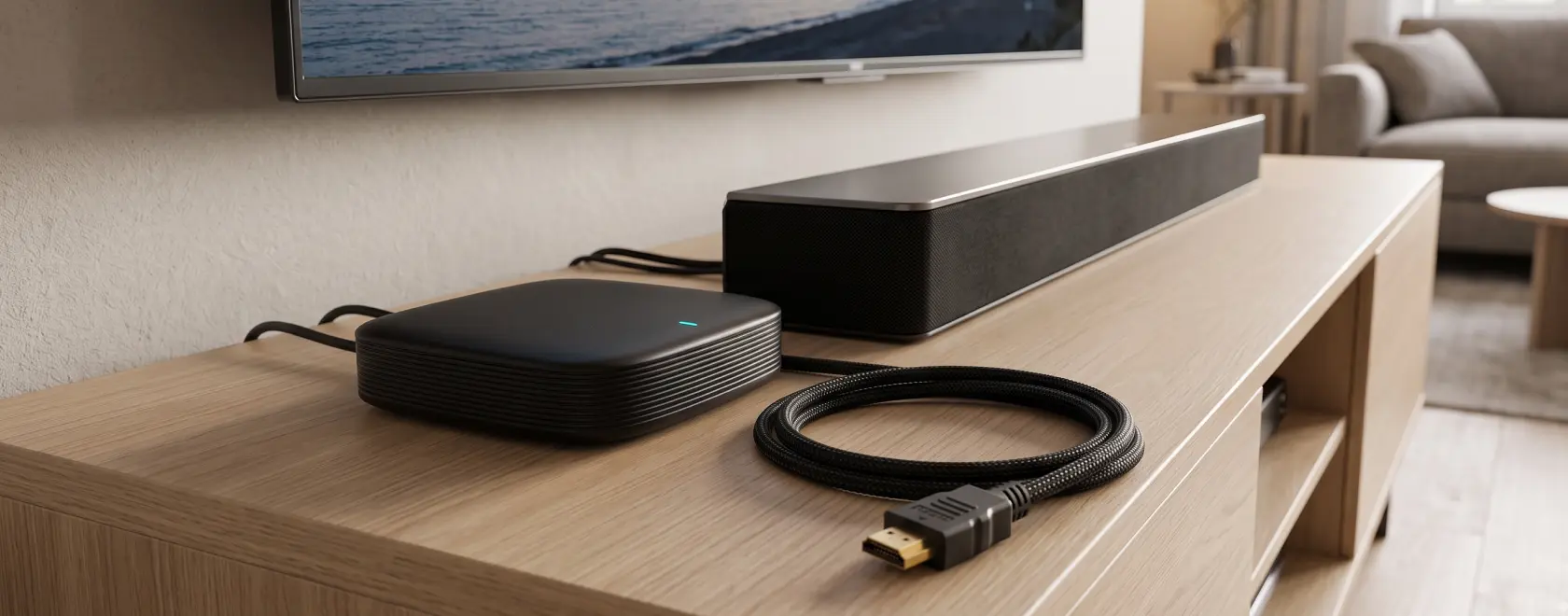
A soundbar can make dialogue clearer and give films a fuller sound, but matching it with an IPTV set-top box takes more than finding an HDMI socket. The connection route, supported audio formats and TV settings all affect what you hear. A system may play stereo perfectly yet fail to deliver surround sound.
Before buying a media player, check how audio will travel from the box to the soundbar. This helps you avoid unnecessary adapters and choose equipment that supports the way you watch.
Start with the Connection Route
There are two common ways to connect a soundbar to an IPTV box. In a TV-first setup, the box connects to a regular HDMI input on the television. The TV sends audio to the soundbar through its HDMI ARC or eARC port. This arrangement works with soundbars that have no separate HDMI input.
Alternatively, connect the box to the soundbar’s HDMI IN port, then connect the soundbar’s HDMI OUT to the TV. The soundbar handles audio and passes video to the screen. This can help when the television cannot forward an audio format that the soundbar supports.
Port labels matter. A soundbar socket marked HDMI OUT (ARC/eARC) is intended for the TV connection; it is not a conventional input for your media player. If that is the soundbar’s only HDMI socket, connect the box through the TV. The IPTV box itself does not need ARC or eARC: these features handle audio returning from the television.
Understand HDMI ARC and eARC
HDMI ARC, or Audio Return Channel, carries sound from the TV to an audio system. Depending on the equipment, it supports stereo PCM and compressed surround formats such as Dolby Digital. Compatible TVs and soundbars can also carry Dolby Digital Plus, including some Dolby Atmos streams, over ARC.
HDMI eARC provides more bandwidth for formats such as Dolby TrueHD and multichannel PCM. Both the TV and soundbar must support eARC to use it between them. However, an eARC label does not guarantee that the television will forward every format or that the soundbar can decode it. Check each model’s supported-format table.
Dolby Atmos needs particular attention. Atmos delivered in Dolby Digital Plus can work over compatible ARC connections, while Dolby TrueHD-based Atmos requires eARC when routed through the TV. The programme, service, app and media player must also support the relevant output. An Atmos logo on the soundbar alone cannot guarantee Atmos playback.
Match Audio Formats and Output Settings
When checking IPTV set-top box audio compatibility, distinguish decoding from passthrough. Decoding converts an encoded soundtrack into PCM audio. Passthrough sends the encoded signal to another device for decoding. A specification saying that a box supports a codec does not necessarily confirm both functions.
Look for formats you actually use. Live channels may carry stereo audio, while films or local files may use Dolby Digital, Dolby Digital Plus or DTS. The player application can affect output too, so verify support in your preferred app as well as the box specifications.
For an initial test, select stereo PCM on the box and, if necessary, the TV. It is a useful compatibility baseline, although it will not preserve discrete 5.1 surround channels. Once sound works, try Auto or Passthrough if the receiving devices support the source format. Avoid forcing a format simply because it appears in a menu. Sony likewise recommends testing PCM when troubleshooting missing TV audio.
Check Video Support When Connecting Through the Soundbar
Routing the IPTV box through the soundbar adds a device to the video path. Check that the soundbar can pass the resolution, refresh rate and HDR format you want, such as 4K at 60 Hz and HDR10 or Dolby Vision. “4K passthrough” alone may not describe every supported combination.
HDCP compatibility also matters for protected video. A limitation in the HDMI chain can cause a blank screen or restrict playback. Use cables suitable for the required signal and follow the manufacturers’ connection instructions. If the soundbar limits video, connecting the box directly to the TV may help, provided the TV can forward the required audio.
Consider Optical and Bluetooth Connections
An optical connection is useful when HDMI ARC is unavailable. Connect the TV’s optical output to the soundbar, or use the box’s optical output if it has one. Optical commonly supports stereo PCM and compressed Dolby Digital 5.1; DTS support depends on the devices. It cannot carry Dolby Digital Plus, Dolby TrueHD or multichannel PCM.
Bluetooth is another possibility, but the box must support Bluetooth audio output and the soundbar must accept it. Bluetooth used for a remote control does not automatically mean wireless speaker support. Audio delay and format limitations make a wired connection a more predictable choice for television viewing.
Test Playback, Lip Sync and Remote Control
Test a familiar live channel and a film in the app you plan to use. If surround sound matters, choose a title with a confirmed surround track. Check the soundbar’s display or companion app for the received format, where available. A virtual surround mode does not prove that it is receiving multichannel audio.
If the IPTV box produces a picture but no sound, check the soundbar input, the TV’s external-speaker setting and the audio output format. Test stereo PCM before assuming the equipment is incompatible. For dialogue that does not match lip movements, check audio-sync settings; adding delay helps only when sound arrives before the picture.
Finally, check HDMI-CEC if you want shared power and volume control. Enable it as required by the manuals and test everyday operation. Successful audio playback and reliable control from one remote are separate compatibility checks.
A compatible IPTV box and soundbar need a suitable connection route, matching audio support and correct output settings. Check the exact models, then test your regular apps and content. This helps you get reliable sound and avoid paying for features your setup cannot use.
